A PAGE FOR YOUR NEXT SLIDEPut a PDF page into your presentation.
Keep the page you need from a lesson PDF. Turn it into a PNG and place it in your own presentation.
Open PDF to PNGTry it with a fictional lesson
We made these sample files for this guide. They contain no student details or real classroom documents. Download them, then choose them in the tool.
1. Choose the PDF and just one page
Open PDF to PNG and press “Choose PDF file”. Choose the downloaded lesson PDF. Once the three previews appear, press “Clear selection” and select page 2, the comparison diagram.
2. Convert that page to PNG
Choose PNG for the download format and “Clear · 150 DPI” for image resolution. Press “Convert to PNG”. For this sample, the 720 × 405 point page produces a 1,500 × 843 pixel image.
Higher resolution can help with small text, but uses more memory. If your phone struggles, choose 96 DPI or process fewer pages. For several pages, ZIP packages the PNGs together; unzip it before adding an image to a slide.
3. Download, open and add it to your slide
Press “Download PNG”. Find the saved file in your browser’s downloads or your device’s file app and open it. In your presentation app, use its option to insert a picture from your device. Select the PNG, keep its proportions and check the text at your intended slide size.
pdfide creates the image; it does not edit your presentation. Menu names and mobile save locations depend on your app and device.
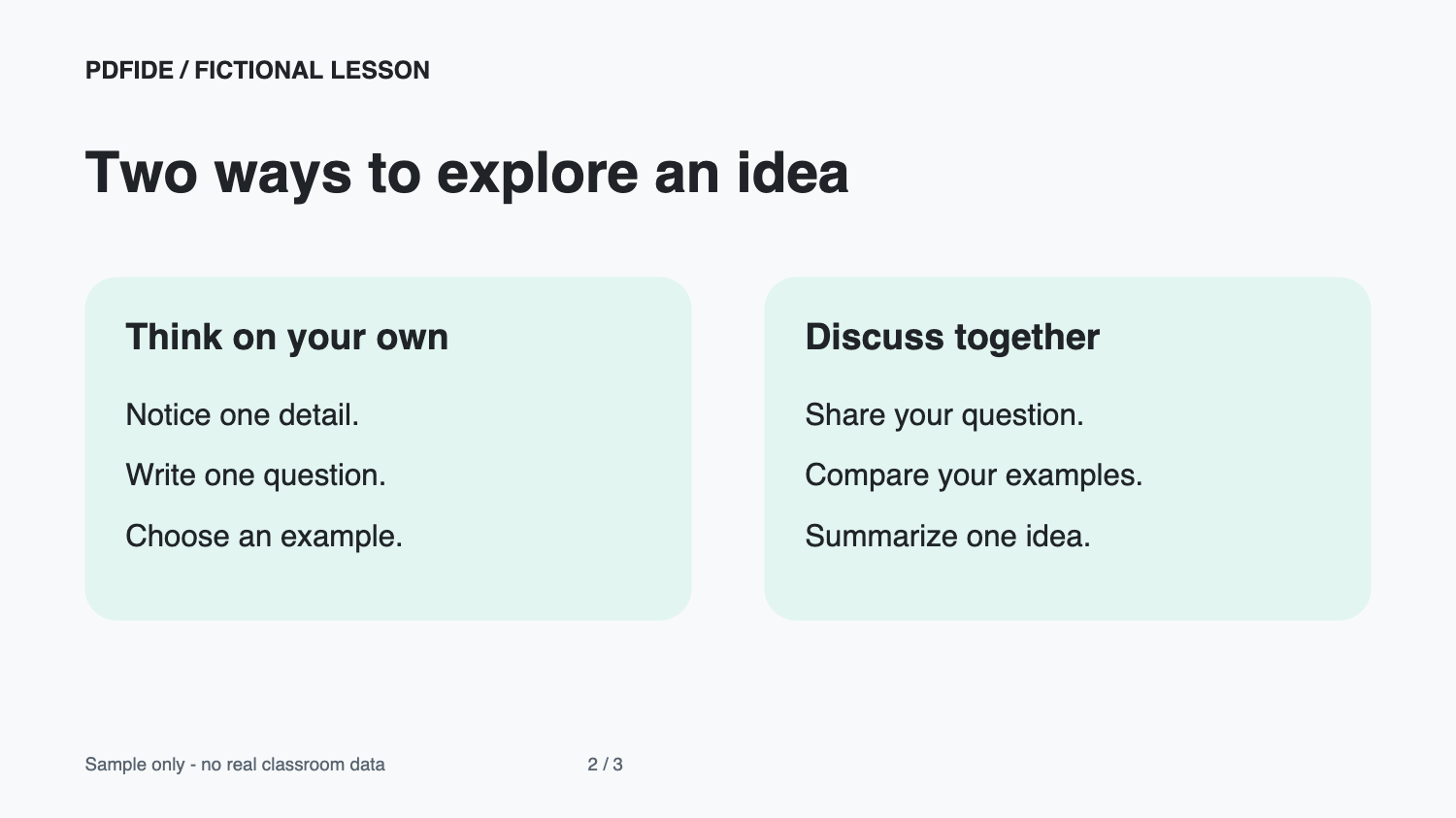 Actual PNG downloaded from pdfide using the fictional PDF, page 2 at 150 DPI.Download the example PNG
 What stays, and what changes?
The page becomes a flat image on a white background. Text, links and diagrams are no longer editable or interactive. This is useful for showing a page, rather than rewriting it. If you need to keep the original PDF content, use Split PDF instead.
The source PDF can be up to 20 MB and 50 pages. Convert up to 20 selected pages in one run, with up to 50 MB of output. Resolution choices are 96, 150 and 200 DPI equivalent, with the longest image edge capped at 3,500 pixels. Password-protected PDFs are not supported.
Your files stay on your device
Conversion runs in your browser without uploading your files or filenames. Anonymous operation and download-button counts help us understand tool use; a download click does not confirm that the file was saved. Privacy details.
If something goes wrong, describe the issue without attaching your document.
