ONE DOCUMENT, IN THE RIGHT ORDERCombine JPG and PNG images into one PDF.
Bring lesson diagrams and activity cards together. Arrange the images, choose a page size and download one PDF.
Open Image to PDFTry it with a fictional lesson
We made these sample files for this guide. They contain no student details or real classroom documents. Download them, then choose them in the tool.
1. Choose your JPG and PNG files
Open Image to PDF and press “Choose image files”. Choose the diagram JPG and activity PNG. Each image will become one PDF page. Check that both previews are upright and readable.
2. Arrange the lesson in reading order
Use the up and down arrows beside each image to put the diagram first and the activity card second. Choose “A4 · fit with margins”. Landscape images use landscape A4 pages, while portrait images use portrait A4 pages.
“Fit image · no margins” uses a page shaped to each image instead. Cropping and resizing are separate tasks: use Crop & resize first if needed, then choose the saved images again here.
3. Create, download and check both pages
Press “Create PDF”, then “Download PDF”. Open the saved PDF on your device. Confirm that the diagram appears first, the activity card second, and neither image is clipped. Keep the original images if you want to make changes later.
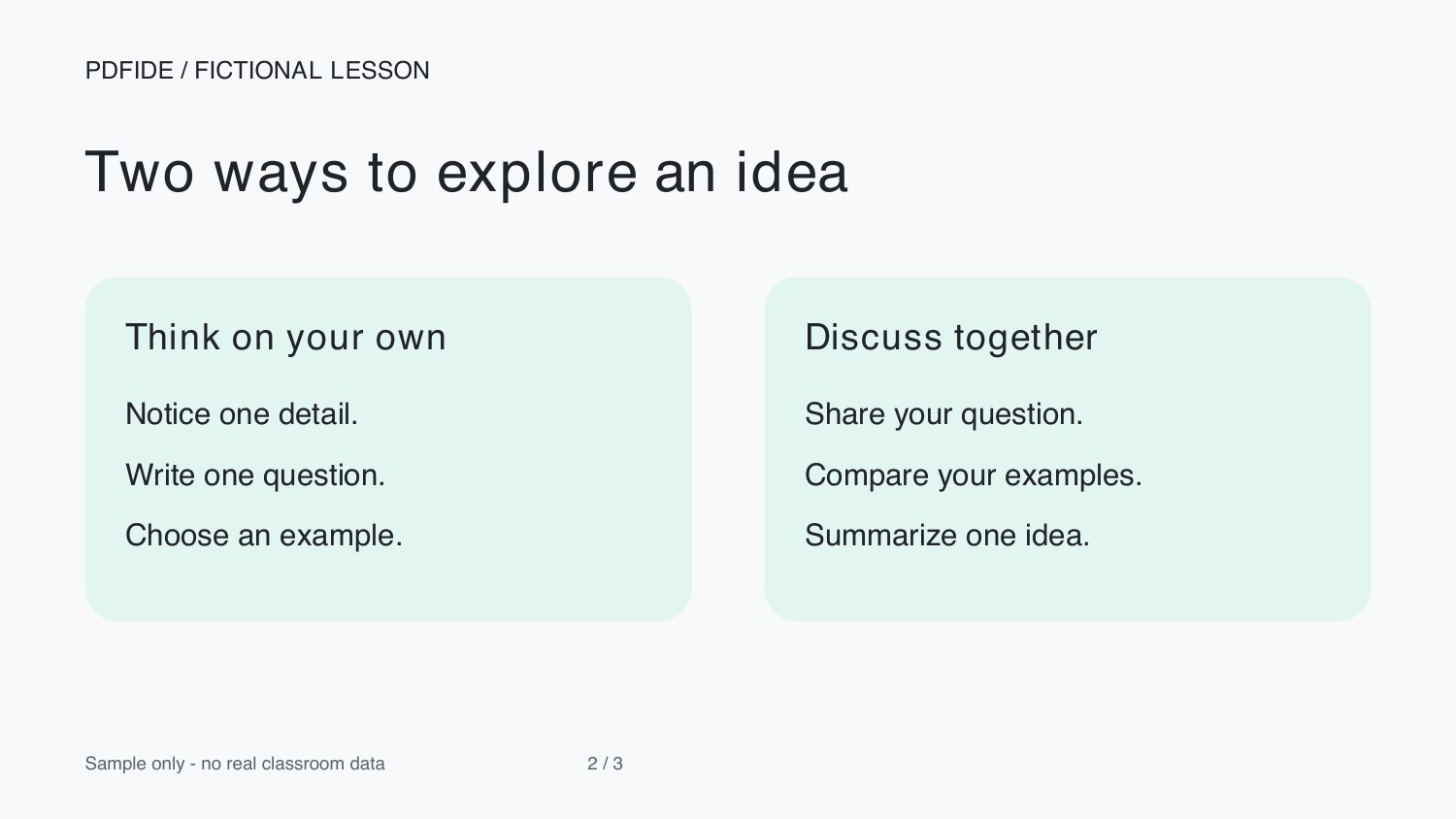 Page 1: lesson diagram (JPG).
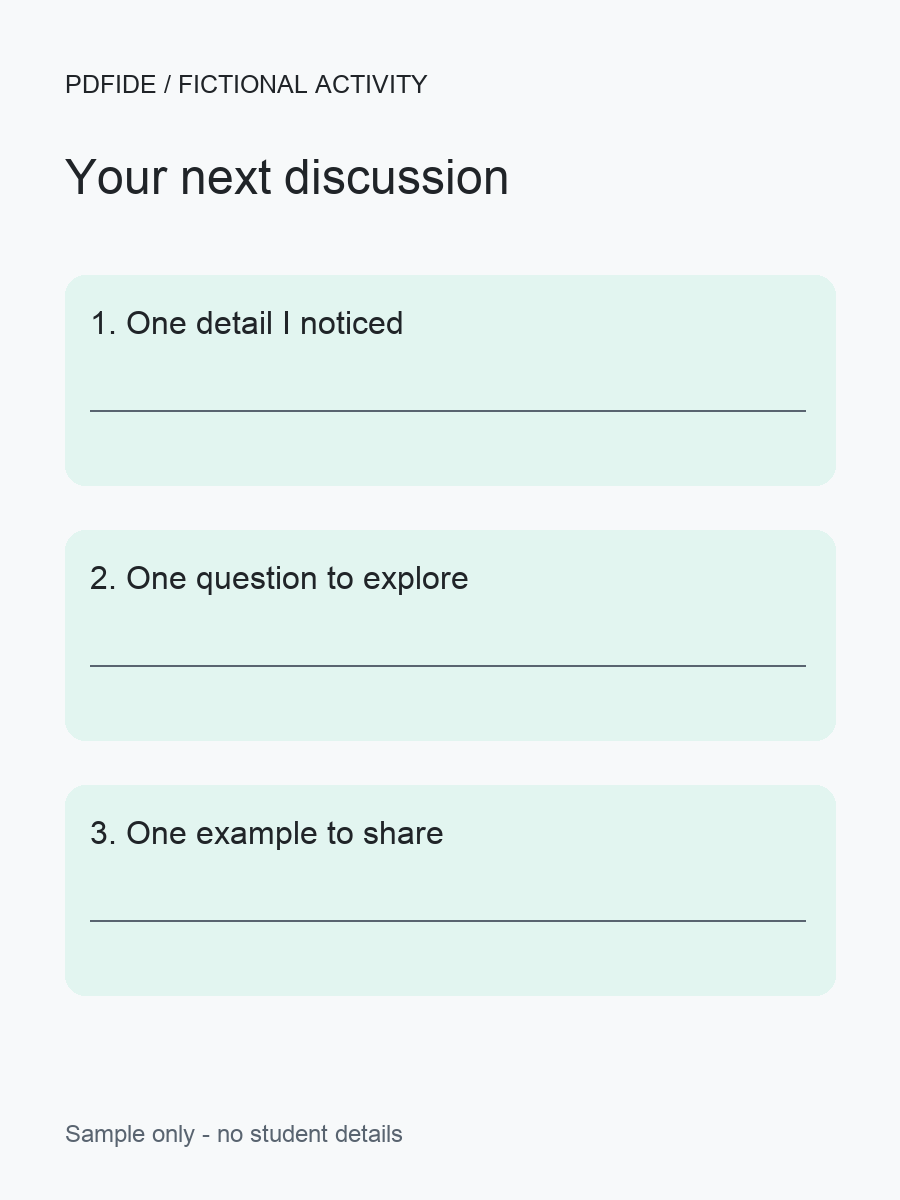 Page 2: activity card (PNG).
Keep these limits in mind
Choose up to 10 JPG or PNG images, up to 20 MB combined and 16 megapixels per image. The resulting PDF can be up to 50 MB. WebP, HEIC and animated files are not accepted here; use Image converter for supported PNG, JPG or WebP conversions first.
The PDF contains images. This tool does not perform OCR or turn photographed text into editable text. A4 fits the image with margins; it does not promise print-quality detail. Check the saved result, especially on a phone.
Your files stay on your device
Conversion runs in your browser without uploading your files or filenames. Anonymous operation and download-button counts help us understand tool use; a download click does not confirm that the file was saved. Privacy details.
If something goes wrong, describe the issue without attaching your document.
