ONE PAGE, STILL A PDFExtract one page from a PDF.
Keep the page you need as a new PDF. Select it from the previews without converting the page into an image.
Open Split PDFTry a fictional three-page PDF
Our sample has a lesson introduction, a comparison diagram and an activity page. We will keep page 2, the diagram, as its own PDF. It contains no personal information.
Download the 3-page sample PDF1. Choose your PDF
Open Split PDF and press “Choose PDF file”. Select the sample PDF or your own document. Wait for the page previews, then find the page you want to keep.
The page numbers refer to the pages in the file. A number printed inside a document can be different, so check the thumbnail as well.
2. Select just the page you need
Press “Clear selection”, then select “Page 2” below the diagram preview. Confirm that only one page is selected before extracting.
For your own file, select the thumbnail of the page you need. You can select several pages too; they are saved together in their original document order.
3. Extract and download the new PDF
Press “Extract pages”, then “Download PDF”. Find the saved file in your browser’s downloads or your device’s file app and open it. For this example, check that it has one page and shows the comparison diagram.
The original three-page document stays unchanged. The output is a separate PDF, not a screenshot or a ZIP of separate files.
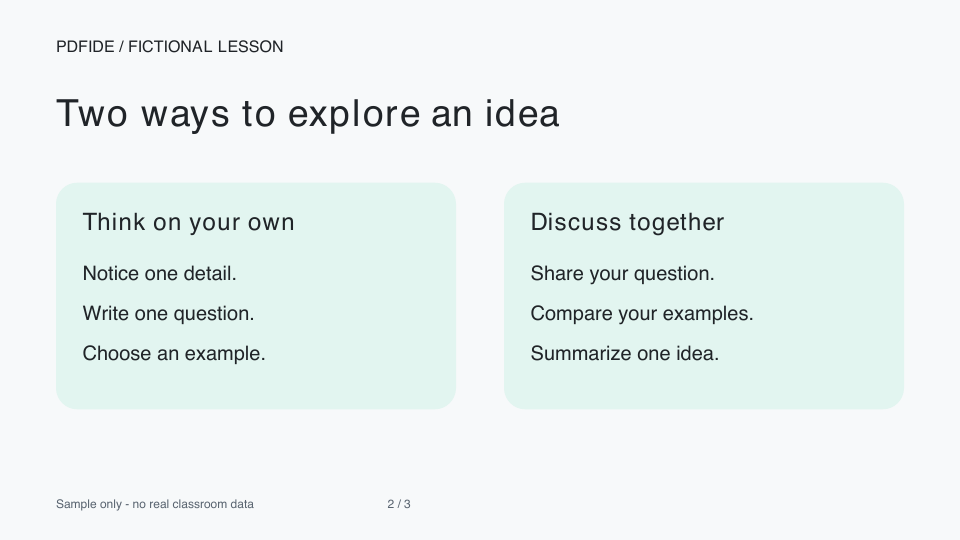 Preview of the actual one-page PDF made with Split PDF using page 2 of our sample.Download the one-page example PDF
 Keep the PDF, or turn the page into an image?
Split PDF copies the selected page without rasterizing it. It retains its size, rotation, text and graphics. If text is selectable in the original page, it remains text; a scanned page remains a scan. This tool does not perform OCR.
If you need a picture for a slide or an image-only form, use PDF to PNG or PDF to JPG instead. Follow our PDF page to presentation guide for that task.
Limits and document features
Choose one PDF up to 20 MB and 50 pages. Up to all 50 pages can be selected; the resulting PDF is limited to 50 MB. Smaller documents can be easier to work with on a phone.
Password-protected PDFs and interactive forms are not supported. Use a flattened copy for forms. Document bookmarks and attachments are not copied. Check any important page features in the saved result.
To combine the extracted page with another document, open Merge PDF and choose the saved PDF along with your other files.
Your files stay on your device
The tool processes your file in your browser without uploading it or its filename. Anonymous operation and download-button counts are described in our privacy details. A download click does not confirm that a file was saved.
If something goes wrong, describe the issue without attaching your file.
